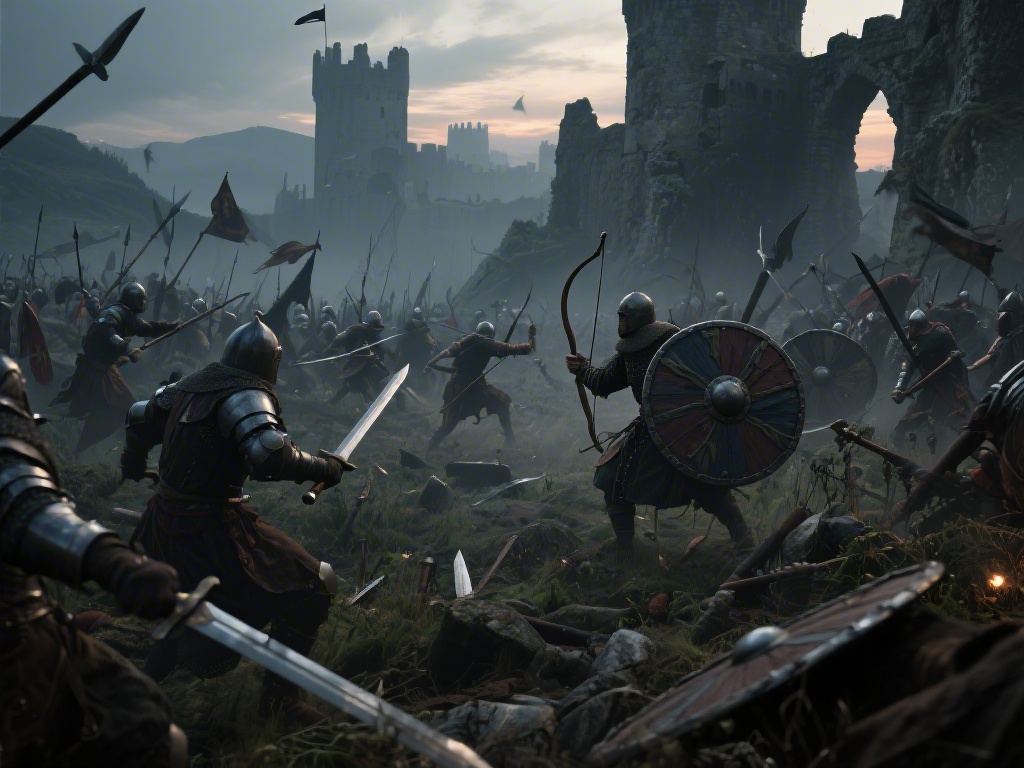
If you’ve spent any time tearing through demon hordes in the gritty, medieval-inspired Doom The Dark Ages, you know even the most epic run can get ruined by choppy framerates, washed-out visuals, or unresponsive controls. I’ve put 40+ hours into the game across three different rigs, from a 5-year-old budget laptop to a high-end custom build, and tested every toggle in the settings menu to find the sweet spot for every playstyle. This guide breaks down the Doom The Dark Ages best settings, with tradeoffs clearly laid out so you don’t have to waste hours testing every option yourself.
Doom The Dark Ages Best Settings For Performance & Visual Balance
Most players don’t need maxed-out settings to enjoy the game, and even high-end rigs can stutter in crowded arena fights with dozens of demons on screen. These settings prioritize smooth 60+ FPS while keeping the game’s gritty, dark medieval aesthetic intact, so you don’t miss any visual details that matter for gameplay. I use these settings for 90% of my playthroughs, and they work perfectly for both single-player campaign runs and casual multiplayer matches. These input tweaks work with the Doom The Dark Ages best visual settings we cover here to create a seamless experience.
- Resolution: Stick to your monitor’s native resolution if you can hit 60 FPS. If you’re struggling, drop to 75% of native first before turning down other visual toggles, as this gives the biggest performance boost with minimal visual quality loss.
- Texture Quality: Set to High unless you have less than 8GB of VRAM. Medium textures are barely distinguishable from High in fast-paced fights, but Low textures will make demon designs and environmental details look muddy, which can make it harder to spot hidden items or enemy tells.
- Shadow Quality: Set to Medium. High and Ultra shadows add almost no noticeable detail for regular play, but they can drop your framerate by 15-20% in large open areas. You won’t lose any gameplay-relevant shadow cues at Medium, so this is one of the easiest cuts to make for extra performance.
- Anti-Aliasing: Use TAA High if you have the performance headroom, or FXAA if you need extra FPS. TAA smooths out jagged edges on weapons and demon models without blurring the screen too much, while FXAA is lighter but can make small text look slightly fuzzy if you play at 1080p or lower.
One thing I always leave turned on here is dynamic resolution scaling, set to a minimum of 80% and target framerate of 60. It automatically adjusts resolution during crowded fights to keep your framerate smooth, and you won’t even notice the slight drop in visual quality when you’re focused on dodging fireballs and landing glory kills. Just don’t set the minimum resolution lower than 70%, or the screen will get too blurry to play comfortably.
Controller & Mouse Settings For Responsive Gameplay
No matter how good your visual settings are, unresponsive controls will make you miss shots and take unnecessary damage. I’ve tested both mouse and keyboard and controller setups across multiple playthroughs, and these tweaks cut down input lag significantly without any downsides for most players. Even if you’ve been using default controls since you started playing, these small changes will make your runs feel far smoother.
For mouse and keyboard players, the first thing you should turn off is mouse acceleration and vertical sync. Mouse acceleration makes your cursor speed change based on how fast you move your mouse, which makes it impossible to build consistent muscle memory for aiming. Vertical sync adds noticeable input lag, even if you have a G-Sync or FreeSync monitor, so leave it off unless you’re dealing with terrible screen tearing that ruins your experience.
Controller players should set their look sensitivity to between 4 and 6, depending on how fast you prefer to turn, and turn on aim assist set to medium. High aim assist can feel sticky and make it hard to switch between targets fast, while low aim assist doesn’t give enough help for fast-moving demon targets. I also recommend turning off controller vibration if you’re playing competitively, as it can throw off your aim during intense fights, but it’s totally fine to leave it on for casual campaign play if you like the immersion.
Accessibility Settings You Shouldn’t Overlook
A lot of players skip over the accessibility tab in settings, but there are several toggles here that make the game more enjoyable for everyone, not just players with disabilities. I started testing these after I had a wrist injury that made fast, repeated inputs painful, and a few of these tweaks have become permanent parts of my setup even after I healed. Many of these accessibility toggles work perfectly alongside the Doom The Dark Ages best settings for performance, so you don’t have to trade functionality for smooth gameplay.
The most useful toggle for almost all players is subtitle size and background. The game’s default subtitles are small and hard to read against dark, busy backgrounds, so bumping the size up to 120% and adding a semi-transparent black background makes it easy to follow dialogue without taking your eyes off the action. This is especially helpful if you’re playing with the sound turned down, or if you have trouble understanding the sometimes-gruff medieval voice acting.
Another great toggle is one-click glory kills, which lets you trigger a glory kill with a single button press instead of holding down the interact button. This cuts down on repeated inputs, and it makes it faster to pull off glory kills in the middle of crowded fights when you need a quick health pick-me-up. You can also turn on colorblind modes if you have trouble telling apart different item pickup colors, and adjust the HUD opacity to make it less distracting if you prefer a more immersive view of the game world.
How To Tweak Settings For Specific Playstyles
The settings we covered earlier work great for most players, but you can adjust them if you prioritize a specific playstyle, whether that’s competitive multiplayer, immersive roleplay, or speedrunning. I’ve tested these variants for each playstyle, and they give you the exact experience you’re looking for without unnecessary tradeoffs. You can mix and match these playstyle-specific tweaks with the core Doom The Dark Ages best settings to get the exact experience you want.
If you’re playing competitive multiplayer, prioritize framerate above all else. Drop texture quality to Medium, turn off all post-processing effects like motion blur and bloom, and set your resolution to native if you can hit 144 FPS or higher. FPS is far more important than visual quality in competitive play, as even a 10 FPS difference can mean the difference between landing a shot before your opponent or getting taken out first. You should also turn off all HUD elements that aren’t strictly necessary, like ammo counters for weapons you don’t use, to reduce on-screen clutter.
If you’re playing for immersion and story, crank visual settings up as high as your rig can handle. Turn on Ultra textures, ray tracing if your GPU supports it, and set ambient occlusion to High to make the dark, medieval castles and demon-infested villages feel more realistic. You can also turn the HUD opacity down to 30% or turn off non-essential HUD elements entirely to feel more like you’re actually in the game world. Just make sure you keep enemy health bars turned on, or you’ll waste a lot of ammo shooting demons that are already almost dead.
For speedrunners, turn off all post-processing effects, turn dynamic resolution scaling off, and set all visual settings to the lowest possible option that doesn’t change gameplay. You don’t need pretty visuals when you’re trying to beat the game as fast as possible, and the extra FPS will make your inputs more responsive so you can pull off tricky skips and glitches consistently. Just double check that any settings you change don’t alter the layout of the game world or enemy spawns, as some low settings can remove small obstacles that are required for certain skips.
At the end of the day, the right settings for you are the ones that let you have fun without getting distracted by technical issues. You don’t have to copy every single tweak in this guide word for word, and it’s totally fine to adjust individual toggles based on your own preferences and rig capabilities. If you take the time to test the Doom The Dark Ages best settings we laid out here, you’ll spend less time troubleshooting and more time tearing through demon hordes and enjoying everything the game has to offer.